Return to Topic
 Configuring ED Loader
1.Click on the Settings tab at the top left. From here, you can configure your ED Loader Settings for this case based on the groups of options listed under the Categories pane on the left-hand side of the tab.
Categories:
2.Once you have your desired settings, left-click on the Apply Settings button located at the bottom left to save these settings for the active case.
i.The Lock Settings button prevents any further changes from being made to these settings.
ii.The Set as Default button tells LAW to automatically apply these settings to all future ED Loader cases.
3.You are now ready to start Using ED Loader.
|
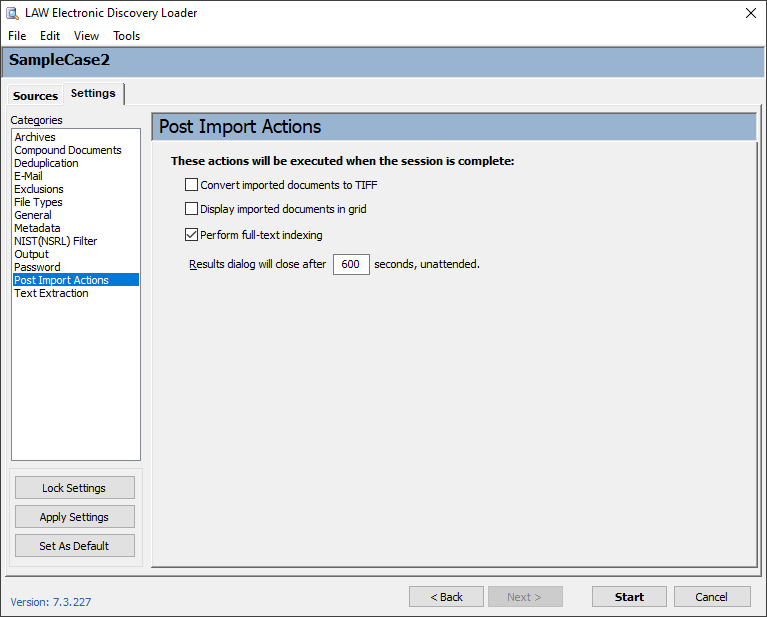
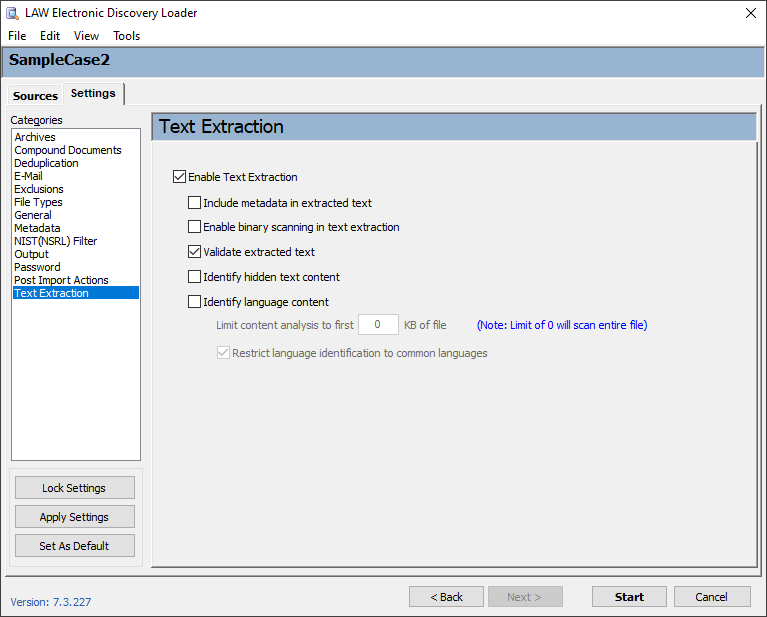
The following Categories are available within the Settings tab of the ED Loader tool: |
|---|

 Settings
|
|
LZH files will be imported, but no files are extracted upon import. |
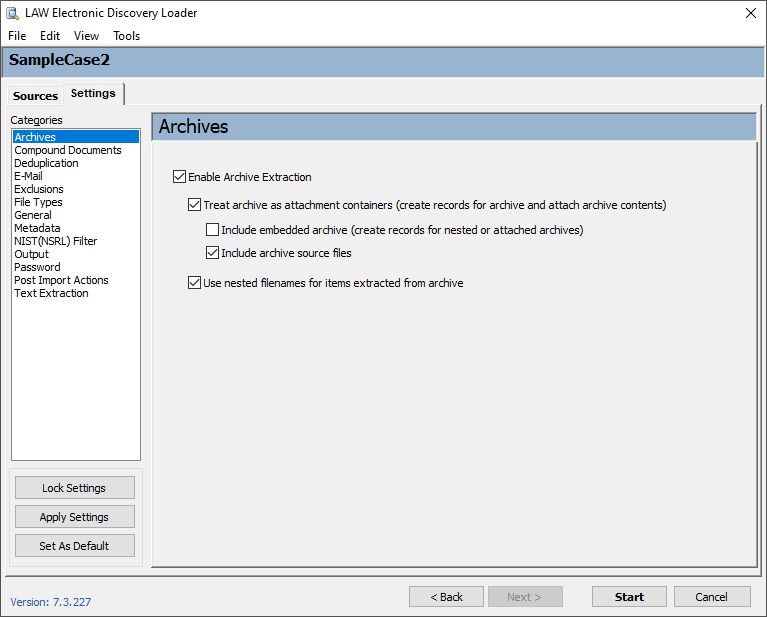
oTreat archive as attachment containers - Creates a separate record for the archive in the Case Directory. If the archive contains loose message files or mail stores, then the ThreadID field will not be populated for those items.
▪Include embedded archive - Creates a separate record for any additional archive files contained within a top-level (parent) archive.
▪Include archive source files - Copies the source archive file into the Case Database. Typically left unchecked to save storage space.
oUse nested filenames for items extracted from archive - Each file extracted from an archive will have its Filename field populated, beginning with the archive's file name and followed by the name of the extracted file.
 To Support Embedded File Types
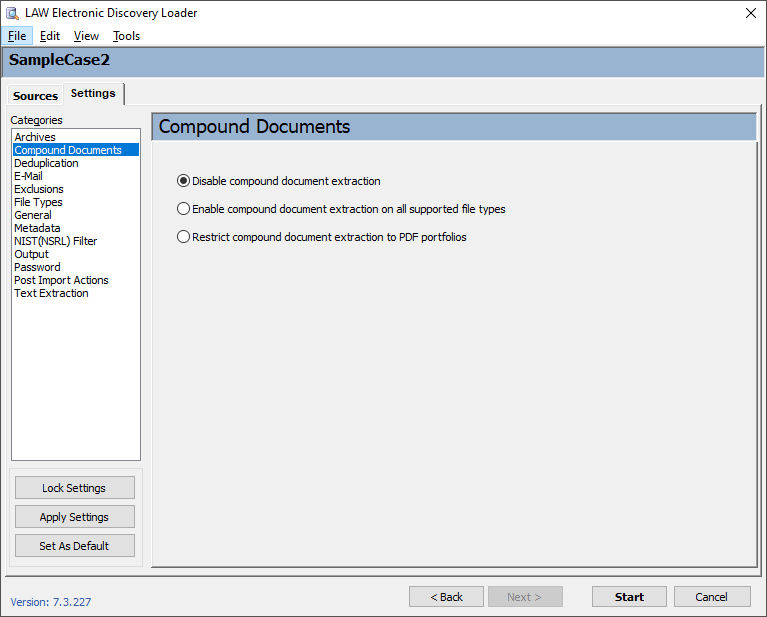
The following file types are supported for extraction from compound documents: •Microsoft Word/RTF •Microsoft Excel •Microsoft PowerPoint •Adobe Acrobat PDF •SnapShot •Microsoft Visio •Microsoft Outlook.FileAttach (Word-authored e-mail with inline attachments, generally stored in RTF) •Microsoft Project •Package* *A Package is a general type of embed; it can be a text file or a zip file, for example. Any of the above types may also be embedded as a package type depending on the software installed when a user embeds the file. For example, if a user were to embed an Excel spreadsheet into a Word document, and Excel is not installed, the spreadsheet will be embedded as Package. Supported containers file types and embedded files The following table lists common embedded file types that LAW supports for extraction:
**Detection of embeds in these types is limited to the types of files supported for extraction (see above list). |
||||||||||||||||||||||||||||||||||||||||||||||||||||||||||||||||||||||||||||||||||||||||||||||||||||||||||||||||||||||||||||||||||||||||||||||||||||||||
|
|
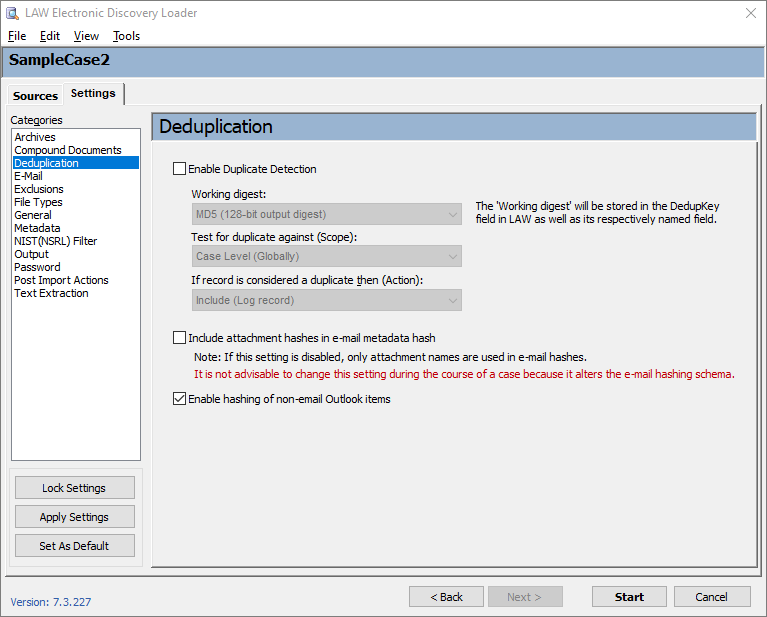
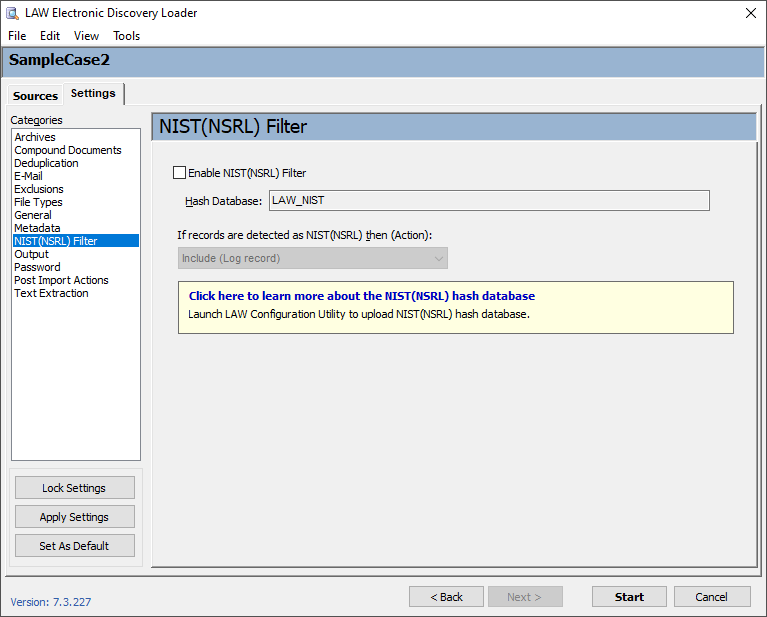
In addition to deduplicating prior to the import process, LAW also allows you to deduplicate at these other times in a postF-discovery workflow: •After the import against other records in the case by using the Deduplication Utility. •After the import against other records in the case and other LAW cases by using Inter-Case Deduplication. |
|
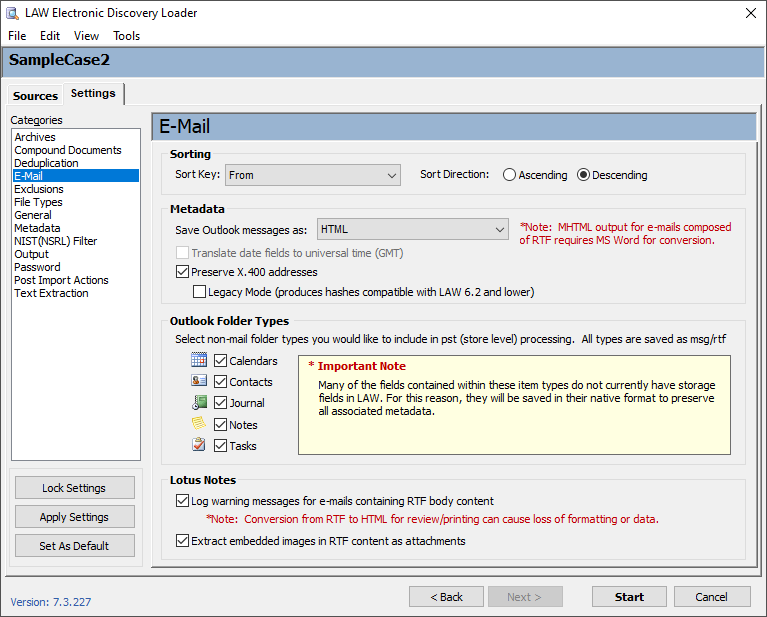
|
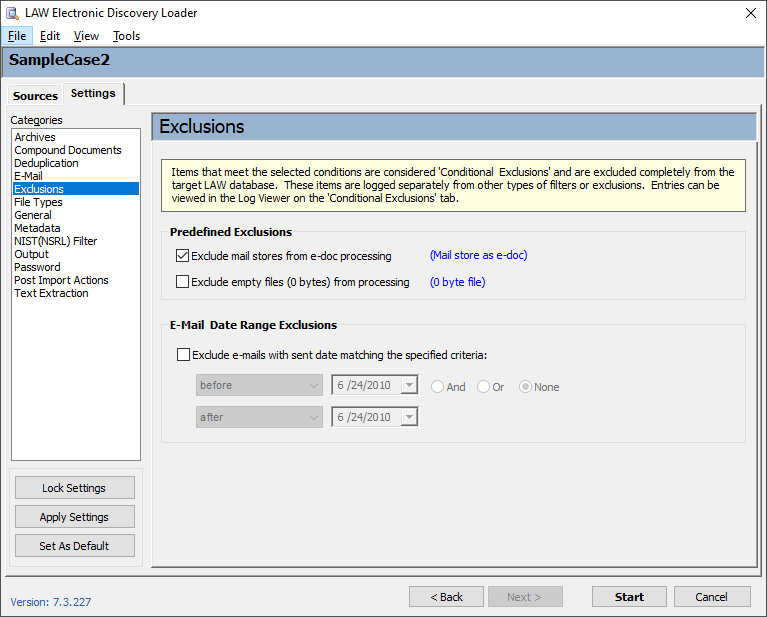
|
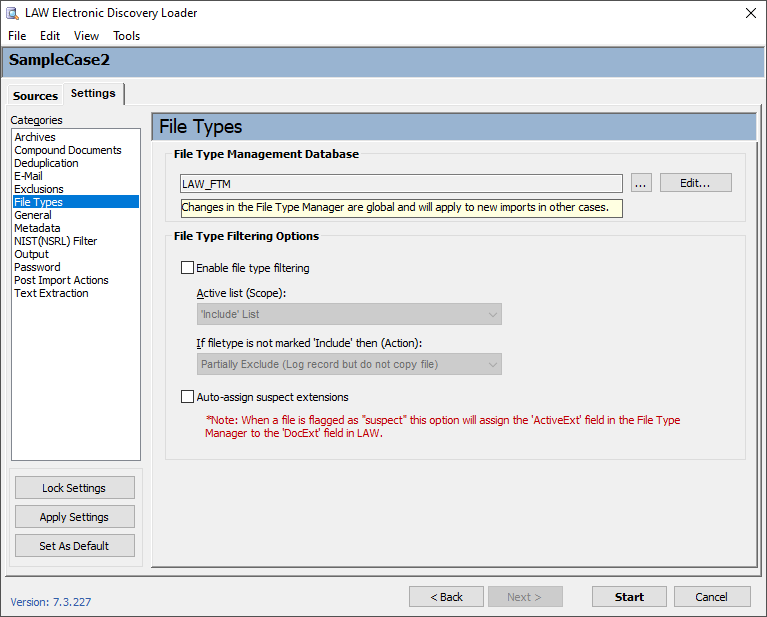
|
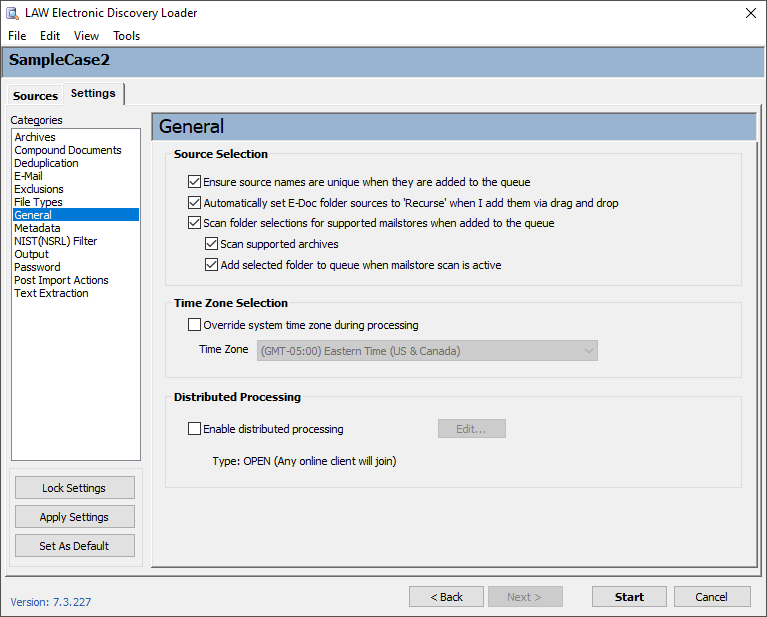
|
|
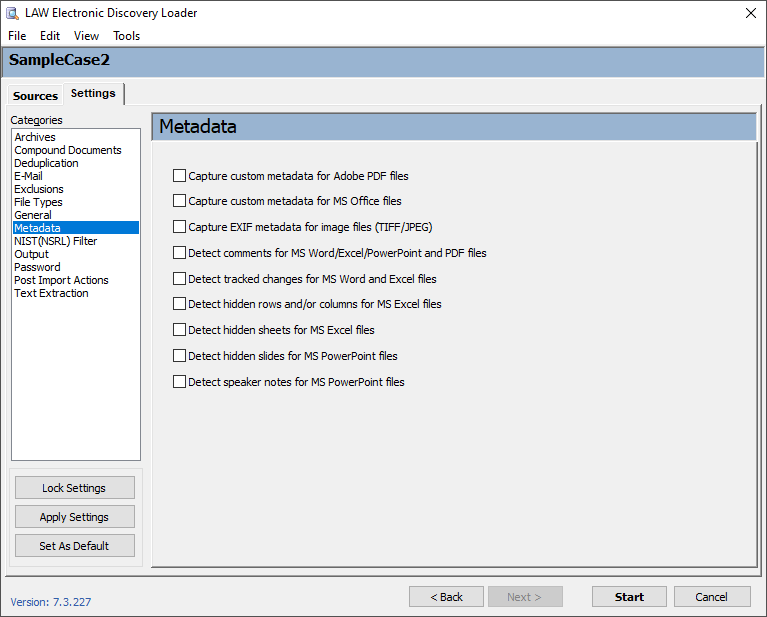
Extended property metadata is placed in extended property fields that are created when the documents are imported or the metadata is extracted by the Batch Processing utility. The names of all extended property fields start with EP. The remainder of the field name depends on the name of the field as it exists in the source document. For example, if a Word document is imported that contains a custom metadata field called Typist, LAW will create a metadata field during the import or batch processing called EPTypist. Deleting a document will delete all corresponding extended properties for that document. For more information on extended properties, see: Extended Properies in Grid Views. |
|
|
|
|
|
|