Return to Section Header
The OCR process can be performed at the document level, page level, or by region.
Before performing OCR on any documents in CloudNine™ LAW, verify that the OCR Options have been set to ensure the proper output format. For example, if planning to export documents into a retrieval application that uses OCR text for searching, select standard or smart text as the output format.
OCR should be performed after document boundaries are fixed. For any non-text format, LAW may not be able to merge or split the OCR files if document boundaries change after the OCR has been created. If the OCR files cannot be modified, the OCR process will need to be run again on the document(s) in the modified range.
 Single Document OCR
To OCR a single document or pages of a single document 1.Open the document to OCR. 2.Press CTRL+O. 3.If the File Already Exists dialog box opens, click Yes to rescan the file and overwrite previously extracted text, or press No to cancel the OCR operation.
To OCR only certain pages of a document 1.Select the pages to OCR in the thumbnails display. 2.Select a page. 3.On the Tools menu, click OCR, and then click Document. 4.If pages of the document have already been flagged for OCR, select Page and then click Show OCR Flags. 5.The flagged pages are selected. See Flagging Documents/Pages for OCR for more details. 6.On the Tools menu, click OCR and then click Selected Pages.
|
Multiple Document OCR
To OCR multiple documents, run the OCR process from the Batch Processing utility. During batch processing, only documents and pages flagged for OCR will be included in the OCR results. For more information flagging documents for OCR, see Flagging Documents/Pages for OCR.
1.From the main window, on the Tools menu, click Batch Processing. 2.In the Processes area, select OCR. 3.On the Options menu, click OCR Settings. 4.Configure OCR options as needed. For more information on OCR settings see OCR Options. 5.Click OK and then click Begin.
|
To OCR a Page Region
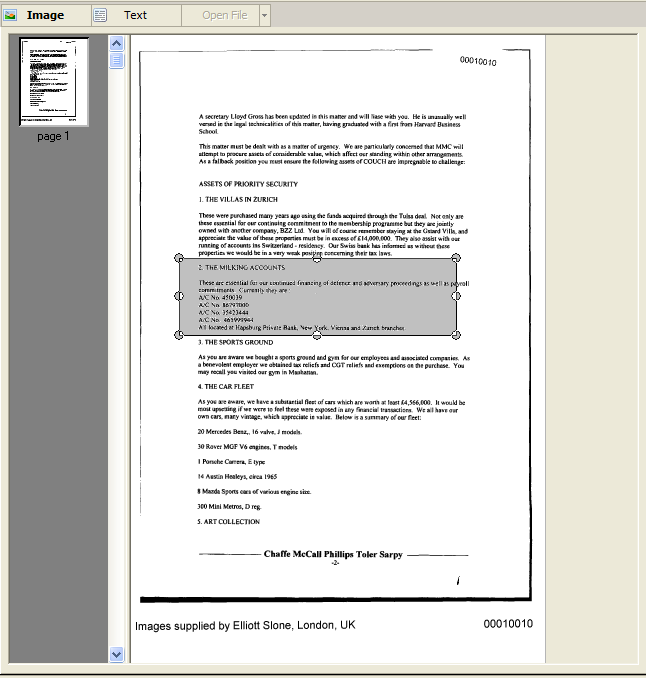
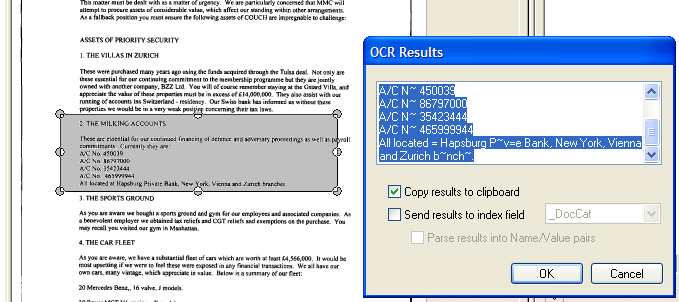
Another available option is to OCR a specified region of an image. This feature is useful for coding information directly from a document to a field without having to retype it. 1.With a page open in the Image tab, press and hold the CTRL key. 2.Drag the mouse over the image to create a resizable rectangle. 3.Release the mouse. 4.Resize and move the rectangle selection tool as needed. To remove the highlight, press ESC or open a different document. Right click the rectangle selection and then click OCR Region. In the OCR Results dialog box, select options for working with the text: •Copy results to the clipboard - Copies the text to the system clipboard. Use this option if you want to paste the text into a different program. •Send results to an index field - Copies the text to an index field of your choosing. •Parse results into Name/Value pairs - Extracts name/value pairs from the selected area. 7.Click OK.
|
Where OCR Files are Stored
During the OCR process, LAW generates and saves an OCR and OCR TXT file for each document OCR is created for. The LAW version a case is created in determines where the OCR and OCR TXT files are stored for a case, including OCR text files that are imported into a case. •For cases created in LAW 6.8.x or earlier, the files are stored in the case's document directory.
For example: If a case has the following directory for an Inbox folder: C:\Cases\[case name]\[PST folder name]\[mailbox folder name]\Inbox, when you perform OCR on the files in the Inbox folder, the OCR files will be stored in the same Inbox folder directory for the case.
•For cases created in LAW 6.9.x or later, the files are stored in the case's $OCR directory.
For example: C:\Cases\[case name]\$Text\$OCR
The naming convention used for the OCR files is the same naming convention used for native files without the "ntv" in the file names. An example of a native file name is 00003335.ntv.pdf. An example of the files names for the OCR files generated for a document: 1132.ocr and 1132.txt. The OCR and OCR TXT files generated for a document have the same file name, but different file extensions.
|

Performing OCR on Documents Containing Redations
When a redaction has been applied and saved to a document in CloudNine™ LAW, the HasRedactions field is set to Y for the document, and the IsRedacted field is set to Y after merging the annotation for each page in the document containing a redaction. When you perform OCR on a document containing redacted text, the OCR process automatically omits the redacted text from the extracted text. Redactions do not have to be manually merged with a document in order for the OCR process to omit redacted text. The document-level HasRedaction field has 3 values: •Y = Has a redaction (merged or unmerged) •N = Does not have a redaction •“ ”(empty or blank) = Unknown (Documents will default to the blank value when added or when opening an existing case.) The page-level field IsRedacted is only updated when a redaction is merged.
Redacted text can also be omitted from documents during export without having to manually merge redactions with a document, by selecting the Enforce protection of redacted documents check box on the Advanced tab in the Export Utility dialog box. For more information, see Advanced Tab. For more information about the HasRedaction and IsRedacted fields, see Field Descriptions - LAW. For more information about redactions and other annotations, see Annotating Documents and Pages.
|