Main Topics for Getting Started 
Open from the Start Menu
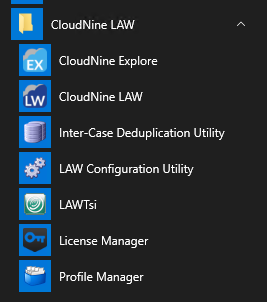 Launch LAW by clicking on Start (Windows Key) > CloudNine LAW > CloudNine LAW from the Windows Taskbar.
•Feel free to pin it to your Start and Taskbar
Open from the program .EXE
You can also launch LAW by opening a File Explorer, navigating to your "LAW50" install folder, and double-clicking on "Law50.exe".
•The defaulted install area is "C:\Program Files (x86)\LAW50". If it isn't there, check with your IT
•Free free to make a shortcut to the "LAW50.exe"
Selecting Licenses When Opening LAW
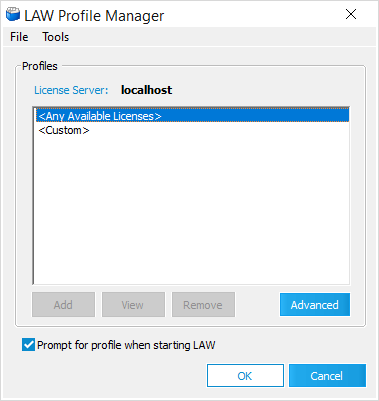 When launching LAW, you are first greeted by the LAW Profile Manager. You can
•Select <Any Available Licenses> from the list, and then click OK at the bottom to proceed.
▪This will check out all available licenses
•Select <Custom> to then select a license
▪For more information on licenses see this page
•Select a Profile that has been created
•Form more information on creating a profile, see this page
This window opens every time LAW is launched unless the Prompt for profile when starting LAW option is disabled.