Return to Section Header
A batch update applies the same update to multiple documents at one time.
|
Note the following facts about batch updates: •Batch updates can be run either from a grid view or from the main window. •A batch update run from a grid view applies the update to the records listed in the grid. •A batch update run from the main window applies the update to pages and documents selected under the Index tab of the main window. |
|---|

For more information about selecting records using grids see Launching the Grids.
For more information about updating documents individually, see Document-Level Coding.
 Batch Updates in Grid Views
1. Select fields and values to update. •To add a field initially, click in the empty field cell, click again on the list control that appears in the cell, and then select a field from the list. •To add or remove fields, select the field and then click Add Field or Remove Field. 2.Select Auto-increment selected text/memo fields, if necessary. When enabled any value entered for text or memo type fields increment by one for each updated record. This feature could be used to assign a new, unique identifier to all or a subset of documents in a case. 3.Click OK. A message box appears that reports the number of records updated. 6.Click OK.
|
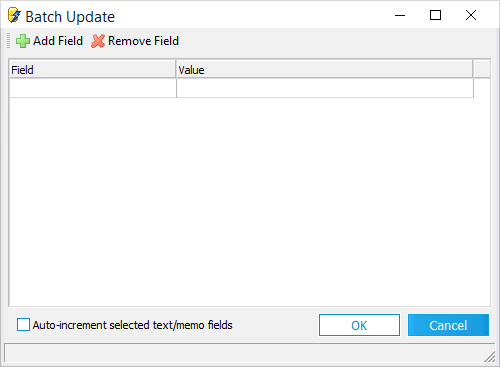
 . The
. The
Batch Updates in the Index Tab
1. For example, in the following screenshot, these pages are selected: 0002, 0004, 0006, 0007, and 0009.
2. For example, in the following screenshot, in the SourceApp field, Microsoft Word is selected. The SourceApp field in each record selected in the previous step will be updated with Microsoft Word.
3. 4.Select any fields to be updated. In the following screenshot, SourceApp is selected for update. 5.Click OK. 6.Click OK in the Batch Update message box, which confirms that updates were successful.
|
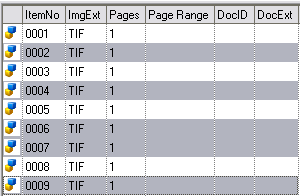 Select the documents to be updated.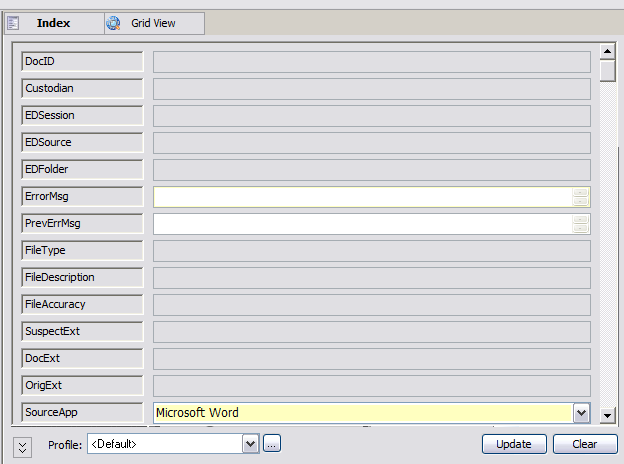
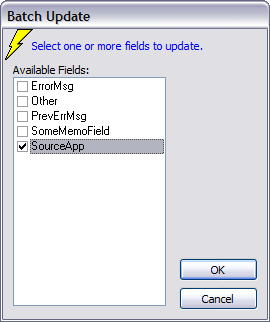 Click
Click